*Update: Dropbox didn't like me throwing a .app in there and linking to it, so I have archived the OS X version and I think this should fix the problems that were reported. Thanks for the letting me know Christian S. =)
Update: Windows and OS X standalone versions are up. Going to see if I can port it to web even though it would require me to switch to bitmap font.
*Update: As part of my LD wrap up/clean up(have to keep things organized), I moved the src zip and .love file, so I had to create a new link, I've updated the links to those files at the bottom.
For now, I've only included the .love file. You must install love2d from http://www.love2d.org/ for your specific platform.
I will be adding standalone executables soon. The two features I ran out of time implementing were Audio (I started a track =/ ) and Instructions/Help Menus on how to play the game/solve the puzzles.
Here is a write up on how to play, and the controls used in the game.
Gameplay
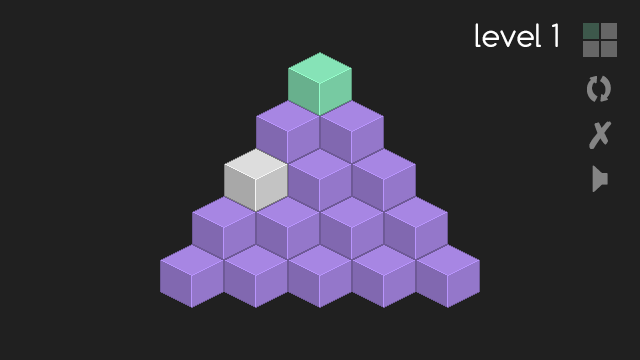
Minimod is a puzzle game consisting of a pyramid structured game board built of cubes. Each cube color represents a different state. The white cubes are considered empty spots, the purple cubes are filled spots. Teal is used to represent the currently selected cube.
The goal of the game is to eliminate the game board to a single cube. This is done by jumping over cubes, similar to the way that checkers jump over enemy checkers to eliminate them. In order for a move to be legal, the selected cube must jump over an existing cube to get to the empty spot. However, each jump can only jump over one cube.
To jump a cube, the user must first select the cube they wish to use.The currently selected cube is represented by highlighting, or changing the color to teal. Once the correct cube is highlighted, pressing enter will switch from selection mode to jump mode. Pressing enter again will cancel the jump mode and allow the user to select a different cube.
Once in jump mode, the cube can be moved to the desired empty spot, assuming that the move is legal, as described above. Once the jump is complete, the cube that was jumped over is removed and the player is returned to selection mode.
This process is repeated once the player has reduced the colored cubes down to a single cube. If the player wishes to reset the board at any time, the refresh button to the right can be clicked to do so.
Controls
Gameplay Control:
The game board is loaded in select mode. From here the player uses w, a, s, d and enter to select purple cubes to use during the jumping mode. Once the desired cube is highlighted, indicated by the teal color, the player can lock on to the cube by pressing enter.
Once a cube is locked on, the same keys, with the addition of q and e, are used to jump the selected cube to an open spot. Open spots are indicated by a white cube. The q and e keys were added to allow jumping over cubes to the left and right of the selected cube. After completing a jump, the player is put back in to cube select mode automatically.
Gameplay Key Mapping:
Selecting a cube
- w: up-left
-- select the cube up-left from current selection
- a: down-left
-- select the cube down-left from current selection
- s: down-right
-- select the cube down-right from current selection
- d: up-right
-- select the cube up-right from current selection
- enter: lock
-- lock on to the currently selected cube
Cube Jumping
- w: up-left
-- if an empty spot is available up-left from currently selected/locked cube, then it moves that cube there
- a: down-left
-- if an empty spot is available down-left from currently selected/locked cube, then it moves that cube there
- s: down-right
-- if an empty spot is available down-right from currently selected/locked cube, then it moves that cube there
- d: up-right
-- if an empty spot is available up-right from currently selected/locked cube, then it moves that cube there
- q: left
-- if an empty spot is available left from currently selected/locked cube, then it moves that cube there
- e: right
-- if an empty spot is available right from currently selected/locked cube, then it moves that cube there
- enter: unlock
-- allows you to unlock the currently locked/selected cube, so that you can select another one
Interface Control:
All interface buttons can be selected with the the mouse.
The introduction/menu screen's options can be navigated with the arrow keys as well as the mouse. Pressing escape will take you to the menu screen. Pressing escape while at the menu screen will exit the game.
Enter can be used to move on to the next level when at the level complete screen.
The 4 squares at the top right of the screen can be used to jump to a different level by clicking on them with the mouse. Purple squares indicate a completed level, and Teal squares represent the currently active level.
Currently the audio control button does nothing due to poor time management during the competition preventing me from finishing the audio implementation.
Interface Key Mapping
- escape: Takes you to the introduction/menu screen. If already on the menu screen then escape will close the game
- return: if not currently playing the game, enter allows for selecting any menu options. Pressing enter on the level complete screen will progress to the next level
@SomeNetworkGuy Sorry it took me so long to get some information up about the controls. Hopefully you run across this again and can give it another try now that I've posted the controls
Your game looks quite nice, though I personally feel like using the keyboard as your primary input made it more confusing. Perhaps the mouse would have been better?
This is fantastic. Great job, and well done given this is your first try with Lua and Love. The controls took a while to get used to, and the visuals don't match the controls. That aside, the game is run (if frustrating) and an excellent manifestation of the theme. I've yet to actually complete a level, but I'm trying. Great work.

Comments9