STATION 88
STATION 88
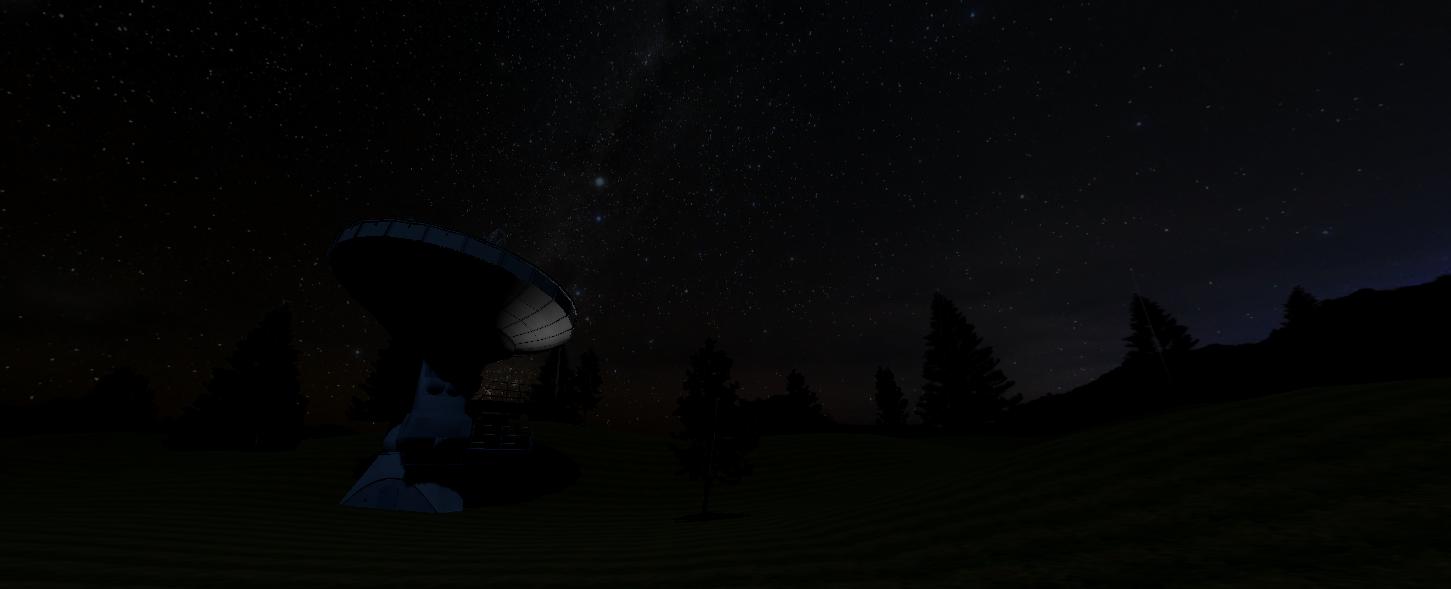
In this game, you are playing as a satellite technician in a control room. Your goal is to control the satellite antenna to receive signals from spaceships and satellites, read them and then answer back. But the signals won't be readable at first, therefore you have access to a array of machines to help your read the signal.
⌨️ Controls
- [WASD] Move
- [Mouse] Look around
- [Left click] Interact (most of the time)
- [Right click] Only for substracting in Antenna Controls
📟 Control room
The whole game happens inside the control room. It is composed of multiple parts that all have theirs utilities.📡 Satellite Antenna
From the main window you will see a massive antenna that you can move with the antenna controls at the center.
🕹️ Antenna Controls
At the center of the main room there is a control panel with 4 levers to control the antenna. There, you can set coordinates to command where the antenna is pointing.- RESET Lever : Left click to reset the antenna pos
- X Lever : Left click X++ | Right click X--
- Y Lever : Left click Y++ | Right click Y--
- SET Lever : Command the satelitte antenna to point to the given coordinates (20s animation)
🌐 Radar
At the left hand side of the window there is a radar (in light blue) where you can see if signals are being sent to you. If a signal is detected, the radar will give you the coordinates to enter on the Antenna Controls to receive the signal.〰️ Wiring Panel
At the back of the main room there is a smaller room. On the left when entering, there is a wiring panel. This is where you can hook the machines together. The top connectors are the input of the machines and the bottom connectors are the output of the machines. To connnect two machines together, click on an output connector of a machine and click on an input connector of another machine. For example, to connect the antenna to the noise reduction machine, output connector of the antenna and on the input connector of the noise reduction machine. If there is a signal received bu the antenna, you should see a noisy signal in the noise reduction machine (in the main room). Left clicking again on the same connector unplugsthe wire.⚡ Electrical panel
On the right of the smaller there is a another panel to control the power levels of the machines. If a machine is not powered, it will not work.... remi dis nous tout moi j'ai rien sur l'elec je suis pas électricien
⚙️ The machines
At the back of the main room (opposite of the window) is where the machines are located. The machines are helpful to transform the signal to be readable or to send a message.Signal analyser
Diplays informations about the signal (works on any signal)Very useful if you are lost on what to do to read the signal.
Noise Reduction
Cleans up the signal received by the antenna. When powered, the light turns on.- Red Light 🔴 = No signal or signal that doesn't need to be cleaned
- Green Light 🟢 = Signal cleaned successfully
Image
Displays an image if the signal contains one. If not, displays an error image.Text Input
Allows the user input numbers to respond to the signals.- *️⃣ = delete last character
- #️⃣ = send signal
Morse .. -. . . -.. ... .-.. . . .--.
Translate from text to morse code and the other way around (use switch to go from one to the other). When powered, the light turns on.- Red Light 🔴 = No signal or signal that can't be red by the machine
- Yellow light 🟡 = Processing signal
- Green Light 🟢 = Finished Processing
tip : if you translate morse code to morse code, the machine will work but il will just translate the morse code to more morse code which is not especially useful.
IF you are stuck :
Signal 1
- Set the Antenna to X:-7 & Y=6. (Right click for -1)- Connect Antenna Output to Noise Reduction Input
- Connect Noise Reduction Input to Morse Input
Signal 2
- Set the Antenna to X:-7 & Y=6.- Connect Antenna Output to Noise Reduction Input
- Connect Noise Reduction Input to Morse Input
- Disconnect Everything
- Connect Input Text output to Morse Input
- Connect Morse Output to Antenna Input
- Press 88# in the Keypad
- Set Morse machine to ASCII to Morse translation.
Signal 3
- Set the Antenna to X:-7 & Y=6.- Connect Antenna Output to Noise Reduction Input
- Connect Noise Reduction Input to Morse Input
Signal 4
- Set the Antenna to X:-7 & Y=6.- Connect Antenna Output to Noise Reduction Input
- Connect Noise Reduction Input to Morse Input
Signal 5
- Set the Antenna to X:-7 & Y=6.- Connect Antenna Output to Noise Reduction Input
- Connect Noise Reduction Input to Image Processing Input
Signal 6
- Set the Antenna to X:-7 & Y=6.- Connect Antenna Output to Noise Reduction Input
- Connect Noise Reduction Input to Morse Input
Signal 7
- Set the Antenna to X:-7 & Y=6.- Connect Antenna Output to Noise Reduction Input
- Connect Noise Reduction Input to Speaker Input
Signal 8
- Set the Antenna to X:-7 & Y=6.- Connect Antenna Output to Noise Reduction Input
- Connect Noise Reduction Input to Morse Input
Signal 9
- Set the Antenna to X:13 & Y=5.- Connect Antenna Output to Noise Reduction Input
- Connect Noise Reduction Input to Speaker Input
Signal 10
- Set the Antenna to X:4 & Y=-2.- Connect Antenna Output to Noise Reduction Input
- Connect Noise Reduction Input to Speaker Input
Signal 11
- Set the Antenna to X:9 & Y=2.- Connect Antenna Output to Noise Reduction Input
- Connect Noise Reduction Input to Morse Input
- Disconnect Everything
- Connect any signal to Antenna Input
Signal 12
- Set the Antenna to X:9 & Y=2.- Connect Antenna Output to Noise Reduction Input
- Connect Noise Reduction Input to Morse Input
Signal 13
- Set the Antenna to X:10 & Y=5.- Connect Antenna Output to Noise Reduction Input
- Connect Noise Reduction Input to Image Processing Input
Signal 14
- Set the Antenna to X:-3 & Y=5.- Connect Antenna Output to Noise Reduction Input
- Connect Noise Reduction Input to Speaker Input
Signal 15
- Set the Antenna to X:15 & Y=12.- Connect Antenna Output to Noise Reduction Input
- Connect Noise Reduction Input to Morse Input
- Disconnect Everything
- Send any signal through Antenna Input
From there you are on your own but you can always check the signal with the Signal Analyser to see what transformation needs to be done on the signal. If you manage to go to Quest 16 you are a true gamer.
Credits :
- Mechanical, elevator.wav by calivintage -- https://freesound.org/s/95701/ -- License: Sampling+
- tv on hum off.wav by ERH -- https://freesound.org/s/30950/ -- License: Attribution 4.0
- eerie_forest.mp3 by gregswinford -- https://freesound.org/s/70100/ -- License: Attribution 4.0
- Tawny Owls .wav by Benboncan -- https://freesound.org/s/63842/ -- License: Attribution 4.0 Owls.wav by Benboncan -- https://freesound.org/s/63220/ -- License: Attribution 4.0
- Crows_01.wav by Q.K. -- https://freesound.org/s/56233/ -- License: Creative Commons 0
- creeeeek-GAIN_01.wav by XxBirdoxX -- https://freesound.org/s/52288/ -- License: Creative Commons 0 -
- 20071104.forest.04.binaural.mp3 by dobroide -- https://freesound.org/s/43661/ -- License: Attribution 4.0
- 20060706.night.forest02.flac by dobroide -- https://freesound.org/s/20575/ -- License: Attribution 4.0
- 20060706.night.cricket.flac by dobroide -- https://freesound.org/s/20573/ -- License: Attribution 4.0
- FutureBoy Font -- This font is copyright (c) Jakob Fischer at www.pizzadude.dk , all rights reserved. Do not distribute without the author's permission. pyright (c) Jakob Fischer at www.pizzadude.dk, all rights reserved. Do not distribute without the author's permission. Use this font for non-commercial use only! If you plan to use it for commercial purposes, contact me before doing so!
Genres: simulation
Comments19
In short :
- you need to move the antenna to the displayed coordinates on the radar. (the first signal is -7,6)
- If the antenna has found the signal, the green diode will light up.
- Connect the Output of the Antenna to the input of the Signal Analyser to see what machine is need to parse the signal.
- if for example the signal analyser says "NoiseReduction", you need to take the signal to the input of the Noise Reduction machine. The machine will provide a new, clean output.
- That output can be analysed to see where it should go.
- Repeat until the signal is completely parsed.
That said, I got a bit confused about what to do after rotating the antenna 🙂 Some extra guidance there would really help the experience flow more smoothly.
Also, the fast movement made me feel a bit unwell. If you decide to improve the game, it would be great to make it smoother and more comfortable to play.
The pacing of this game was quite slow, but I really loved the immersion of needing to interact with all the bits and pieces manually, and the mystery of decoding the signals was well executed. I loved especially the weird messages with radio signals and images that didn't really do anything except give an uneasy feeling. The lo-fi aesthetic fit perfectly.
In an expanded setting I could definitely imagine having a lot of fun with a more complicated setup and a longer game, though I think a lot of things would need to be streamlined slightly, as moving all about to swap wires around was a bit onerous in the end. Having the player character move extremely quickly was nice to keep the game from plodding too slowly, but was also a bit jarring.
All told, I was really impressed by this. It's very different in a good way, and exploring some game design space that I'm really into in general. Nice work, and thanks for the game!